28 October 2026 · Orbit Multiprint
The 8-point file checklist before your visiting card goes to print
Bleed, safe zone, CMYK, resolution, black, fonts, finish masks and export: the checks that get the proof right first time.
Most visiting-card reprints happen because of the file, not the press. A thin white edge, a phone number cut off, a logo that looks soft, a blue that turned purple: every one of these was visible in the file before it was uploaded. This is the eight-point check we run on every card, written so you can run it yourself and get the proof right the first time.
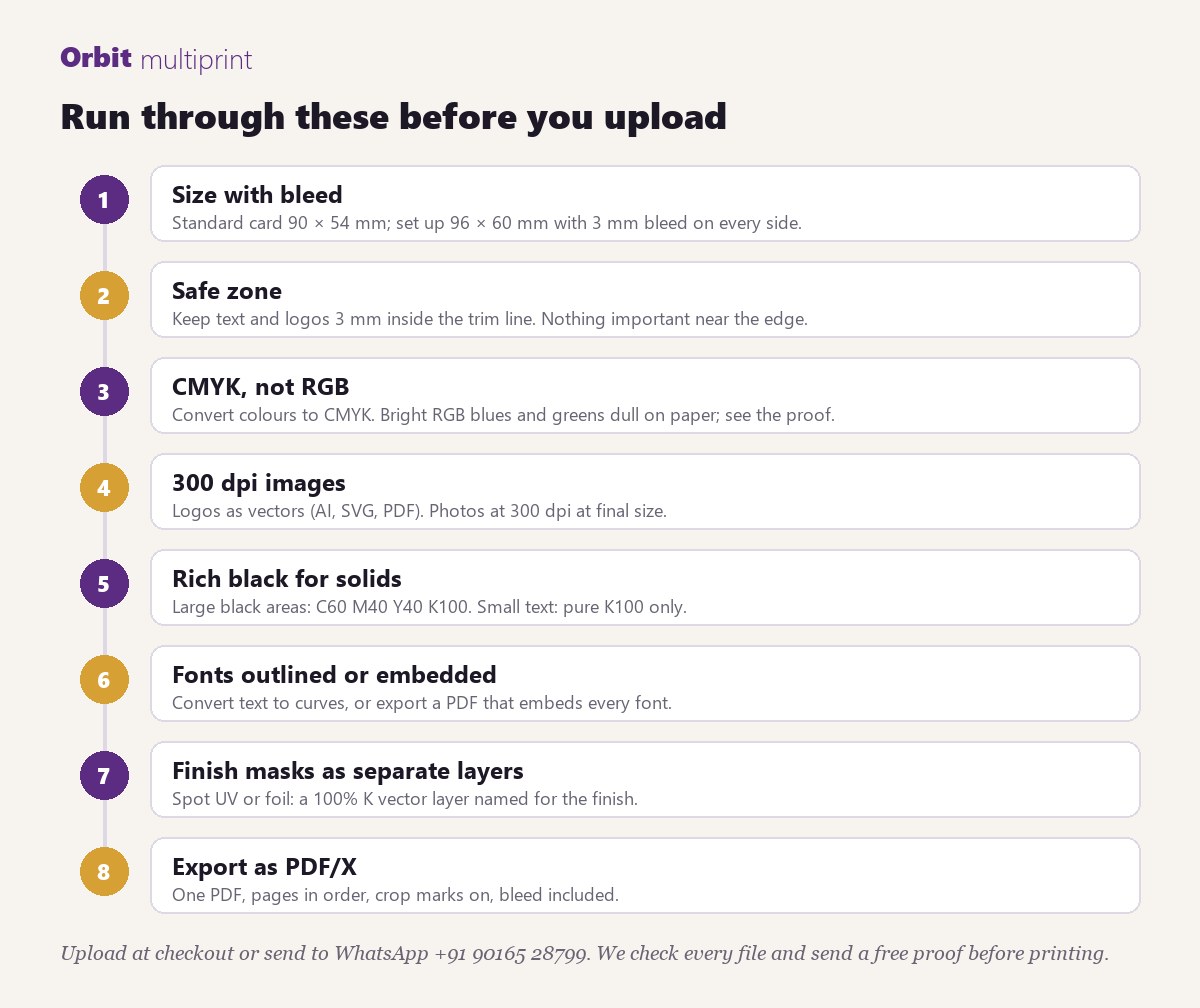
1. Size with bleed
A standard Indian visiting card is 90 × 54 mm. Set the document up at 96 × 60 mm, which is the card plus 3 mm of bleed on every side. Anything that touches the edge of the card (a background colour, a photo, a band) must extend into that 3 mm. The cutter is accurate to about half a millimetre; bleed is what hides that half millimetre.
2. Safe zone
Keep every piece of text and every logo at least 3 mm inside the trim line. The area between the trim and the safe zone is where a slight shift in cutting would clip something. Phone numbers along the bottom edge are the most common casualty.
3. CMYK, not RGB
Screens show RGB light. Presses print CMYK ink. A bright RGB blue or a neon green cannot be printed; the press makes the nearest CMYK equivalent, which is duller. Convert the file to CMYK before you export and judge the colours in that mode. If a specific colour matters, pick it from a CMYK swatch book or tell us the Pantone reference.
4. Resolution
Logos should be vectors: AI, EPS, SVG or a PDF exported from the design software. Vectors stay sharp at any size. Photos and any raster art must be 300 dpi at the size they print. A logo copied from a website is usually 72 dpi and 200 pixels wide; printed at 30 mm it will look fuzzy.
5. Black
There are two blacks. For small text, use pure black (K 100 only). For large solid areas, use rich black (roughly C 60, M 40, Y 40, K 100) so the area prints deep rather than greyish. Never use rich black on small text; the four inks will not register perfectly and the edges will look fringed.
6. Fonts
Convert text to outlines or curves before exporting, or export a PDF that embeds every font. If a font is missing, the proof shows a substitute typeface and the spacing changes. Canva and online tools usually embed correctly when you export as "PDF Print".
7. Finish masks
Spot UV, foil or embossing need a separate layer or page with the finish area as solid 100 percent black vector shapes, named for the finish. The printed artwork underneath must not change. Keep finish elements 3 mm from the trim and avoid lines thinner than 0.3 mm.
8. Export
One PDF, front on page 1 and back on page 2, crop marks on, bleed included, PDF/X-1a or PDF/X-4 if the option exists. Avoid JPG and PNG for final files: they flatten text, lose vectors and have no bleed.
The mistakes we see every week
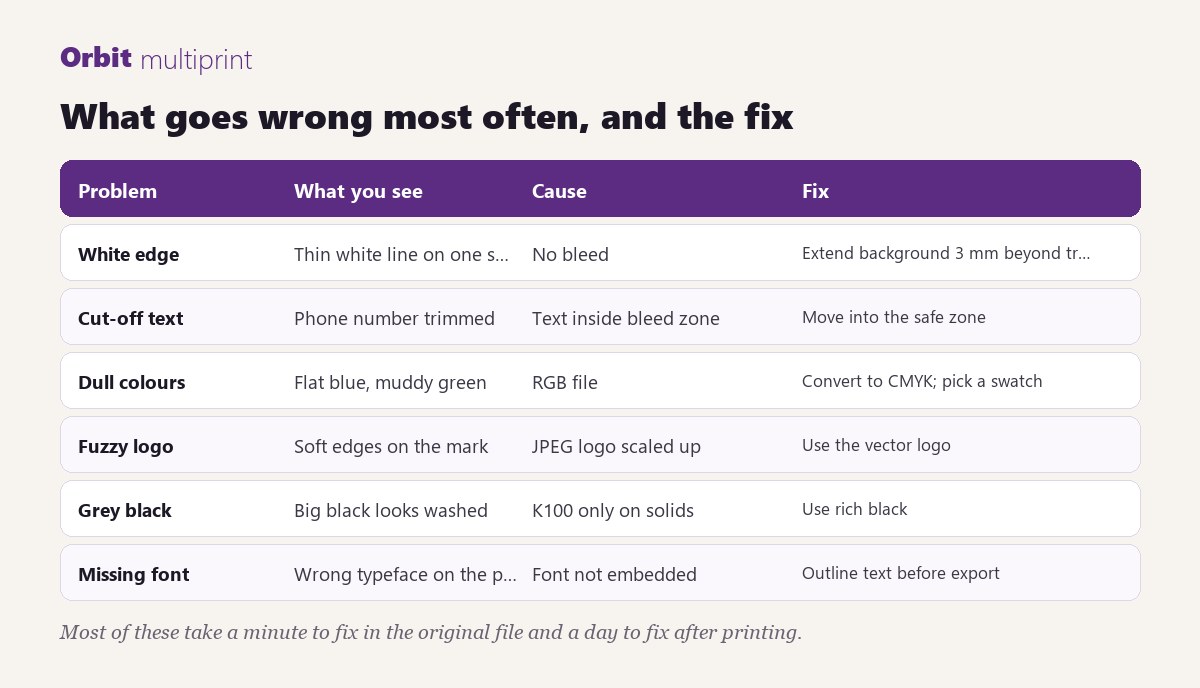
Each of these takes a minute to fix in the original file and a day to fix after printing. If you are not sure, upload what you have; we check every file before it goes to press and send a free PDF proof that shows trim and safe zones.
What a good file looks like
A clean visiting-card file has: a 96 × 60 mm page, backgrounds running to the page edge, text inside the inner 84 × 48 mm, vector logo, CMYK colours, pure black text, outlined fonts, and separate finish layers if any. Two pages, one PDF.
Upload the file on any visiting card product page, or send it to WhatsApp +91 90165 28799. If you would rather we design the card, tell us the details and we will send a layout for approval. Paper and weight choices are covered in our GSM guide, and finishes in the finishing guide.